Screenshooting
Sometimes screenshots need to be redone. This page explains how to create the different screenshots, tools and settings
Common
Creation:
- Use English translation
- Empty search
- Remove history checkmarks but leave it on the page thats used for the screenshot
- After resize of the page into the required resolution, reload the page to have all scrollbars in default loading position
Demo Screenshot
Content:
A meaningful full-screen screenshot of an interesting page.
The content should be:
- timeless: not showing any dates or often edited content
- interesting: show a bunch of interesting elements like headings, code, etc
- balanced: no cluttering with overpresent elements or coloring
- aligned: aligned outlines
Used by:
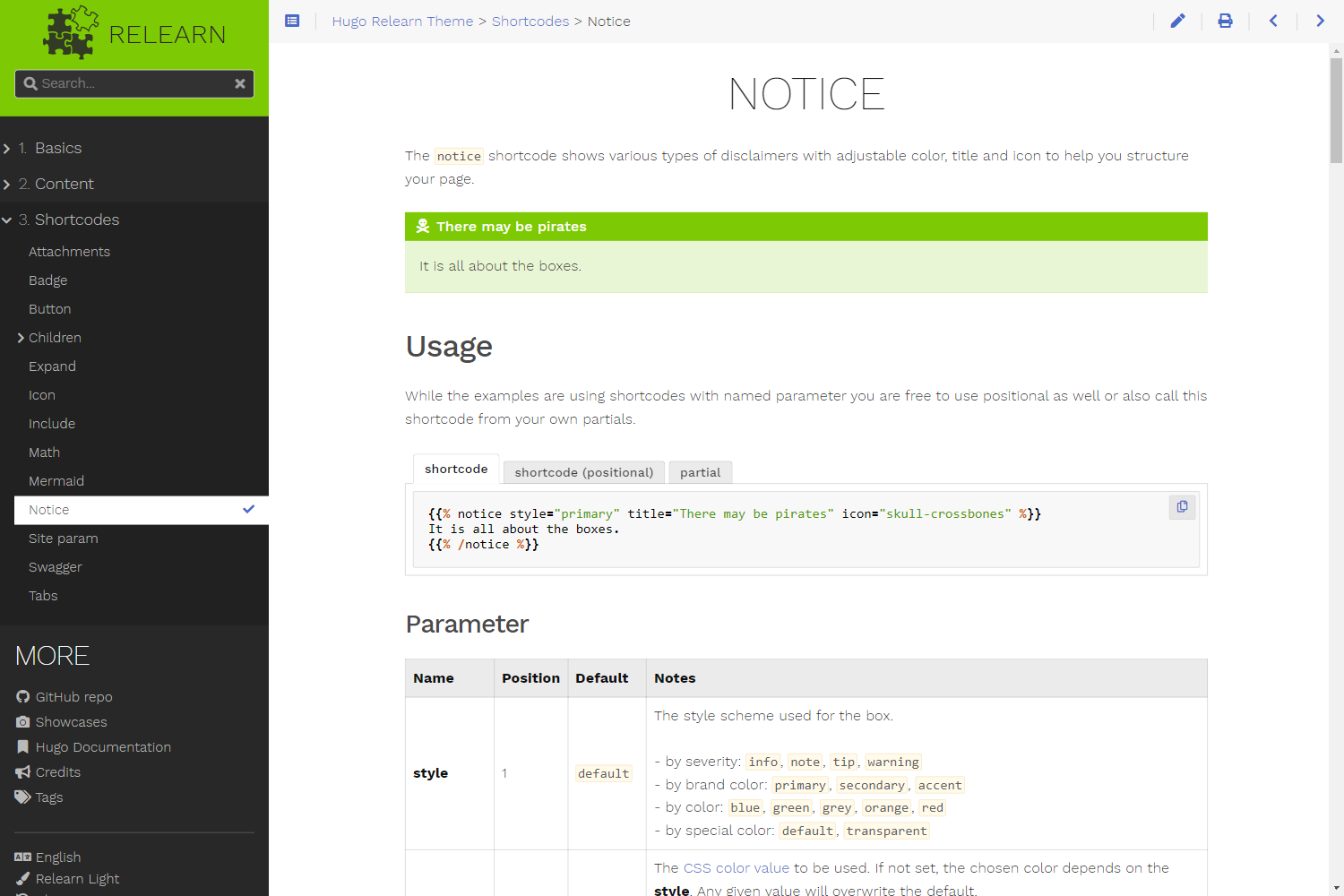
- Hugo Themes info: https://themes.gohugo.io/themes/hugo-theme-relearn/ 1000 x 1500 @ 1 (
images/screenshot.png) - Hugo Themes gallery: https://themes.gohugo.io/tags/docs/ 900 x 600 @ 1 (
images/tn.png)
Page URL: Screenshot Link
Creation:
- save as
images/screenshot.png - from original screenshot, scale to 900 x 600 and save as
images/tn.png
Remarks:
The locations are mandatory due to Hugo’s theme site builder.
Preview images/screenshot.png:
Preview images/tn.png:
Hero Image
Content:
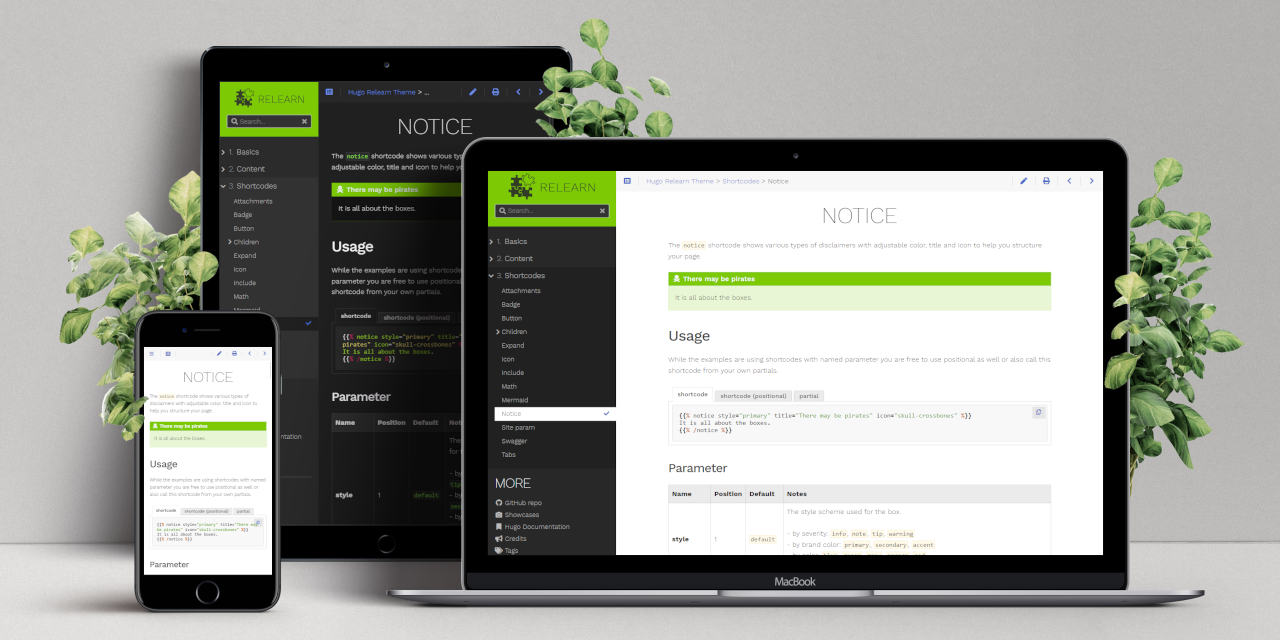
Show the Demo Screenshot page on different devices and different themes. Composition of the different device screenshots into a template.
The content should be:
- consistent: always use the same page for all devices
- pleasing: use a delightful background
Used by:
- Hugo Themes notes: https://themes.gohugo.io/themes/hugo-theme-relearn/ 1280 x 640
- GitHub project site: https://github.com/McShelby/hugo-theme-relearn 1280 x 640
- GitHub social media preview: https://github.com/McShelby/hugo-theme-relearn/settings 1280 x 640
Page URL: Hero Image Link
Creation:
- Template: http://www.pixeden.com/psd-web-elements/psd-screen-web-showcase
- Desktop: light theme 1440 x 900 @ 1
- Tablet: light theme 778 x 1038 @ 1
- Phone: dark theme 450 x 801 @ .666
- From original template resize to 3000 x 1500 offset y: -330, scale to 1280 x 640 and save as
images/hero.png
Preview images/hero.png:
Shortcode Feature Images
The feature images for the shortcodes are generated automatically via a Node.js script.
It lives in the infra repository inside of the tools/screenshots directory. All following commands need to be executed from the root of that repository.
To recreate the screenshots
- install Node.js according to their installation guide
- check out the infra repository next to the theme, as described in Developing
- run
npm ci - run
npm run screenshots
The script serves the documentation itself on port 3132, captures the page of every directory below docs/content/shortcodes and writes the result back into docs/content/shortcodes/<shortcode>/featured.png of the resolved theme checkout. To capture against a server you are already running instead, pass its address:
To capture only some of the pages, name their directories, separated by commas:
Run this locally and commit the resulting images with the change that made them stale. The regenerated files land in your theme checkout, so they show up in git status alongside everything else.